On your phone
The terminal, laid out for your phone
The OGOFX terminal has its own layout for phones, in your phone's browser. Sign in with the login you use on your computer and your accounts are there.
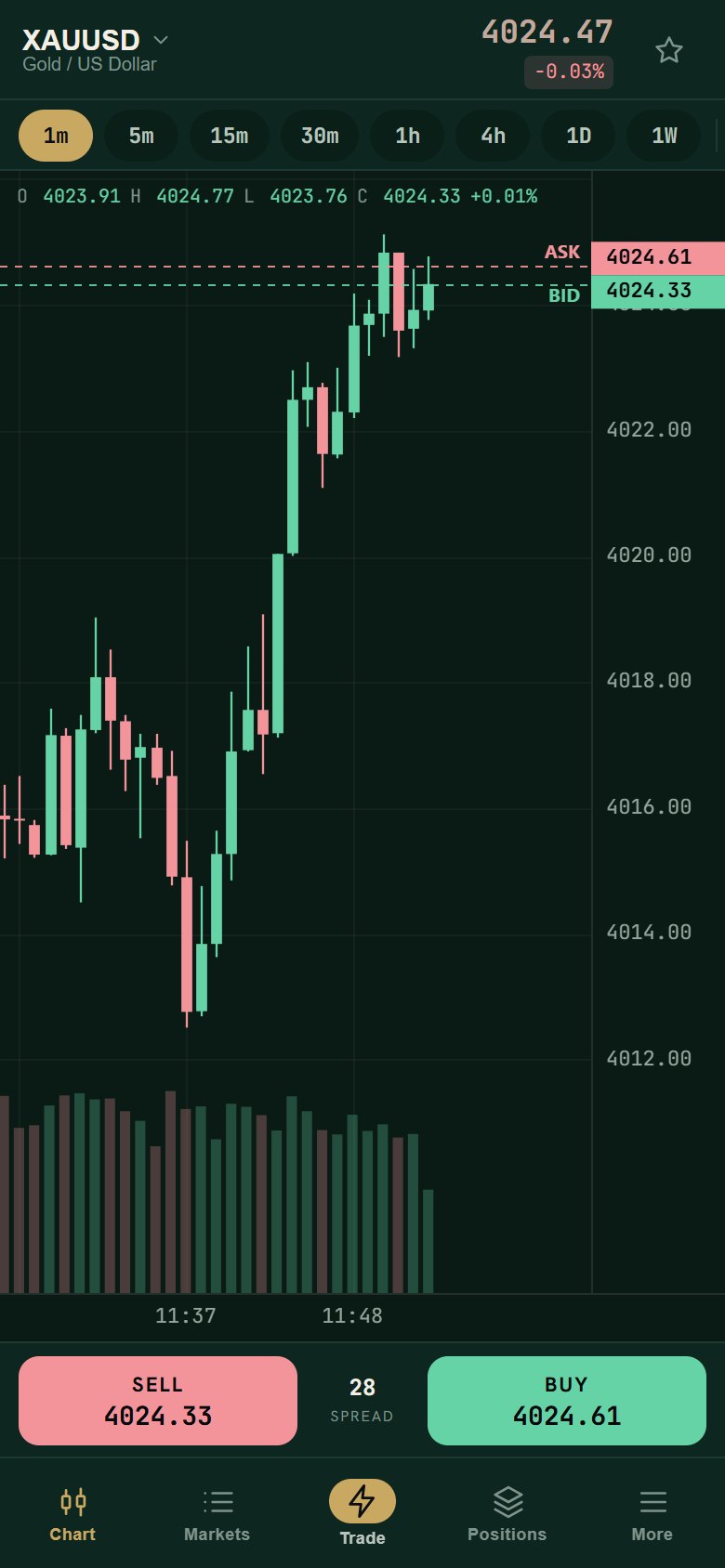
Built for a small screen
Not a shrunken desktop: the terminal has a layout of its own for phones.
-
Nothing to install
Open it in the browser on your phone. There is no app to download.
-
One login
The same client portal login as on your computer, with two-factor sign-in if you have turned it on.
-
The same account everywhere
Both layouts work on the same trading accounts, so a position opened on your computer is the same position on your phone.
-
A layout of its own
On a phone the terminal opens in a layout made for the phone screen, not a scaled-down copy of the desktop.
One account, two screens
There is one OGOFX terminal. On a computer it opens in its desktop layout; on a phone it opens in a layout made for the phone. Both work on the same trading accounts, so nothing has to be copied or synchronised.
- Start a trade at your desk and check on it from your phone.
- Your balance, positions and orders are those of the account, whichever screen you use.
- Sign in on either screen with the same email, password and, if it is on, two-factor code.
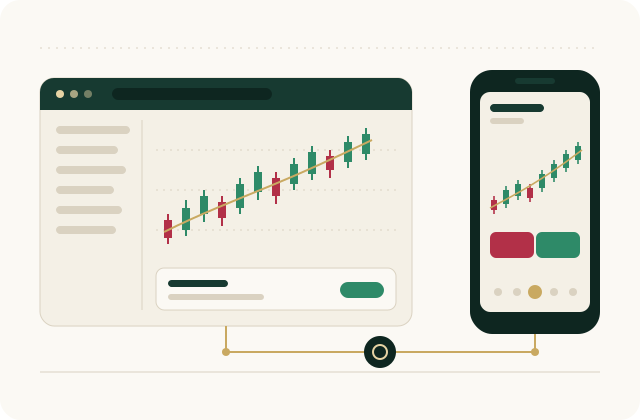
What stays the same on a small screen
The phone layout changes how the terminal is arranged, not the terms you trade on. Prices, costs and limits belong to your trading account, so they are the same on the phone as on the desktop.
Costs
Standard has no commission; its markup is in the spread ($1 a lot on currency pairs, 50% of the spread on metals, indices and energy). Raw and Pro trade the liquidity provider's raw spread plus a commission per lot, charged once when the position opens. Swap is charged or paid at the broker's daily rollover. See fees.
Order size
Orders start from 0.01 lots on currency pairs, in steps of 0.01. An account can hold up to 2 lots open in one instrument, so the largest order is 2 lots. Some instruments have a larger minimum size, listed in the contract specifications.
Margin
Margin call at a margin level of 100% and stop-out at 50% on Standard; Raw is 100% and 50%, Pro 100% and 50%. See leverage and margin.
Start trading on your phone
-
Step 1: Open your phone's browser
Go to the client portal. If you are new, register and verify your identity first.
-
Step 2: Sign in
Enter your email and password, and the code from your authenticator app if two-factor sign-in is on.
-
Step 3: Open the terminal
Choose the trading account you want and open the terminal. It opens in the phone layout.
-
Step 4: Trade
Pick an instrument, read the price and place your order.
Good to know
- The phone layout is the same OGOFX terminal, so prices, orders and account figures are the same as on the desktop.
- Money is handled in the client portal, once your identity is verified. Each trading account has its own USDT deposit address on BNB Smart Chain (BEP20); a deposit is credited after the network confirms it, and one above $50 after a check by the OGOFX team. You also have a wallet in the portal and can move money between it and your trading accounts. A withdrawal comes from the wallet or from a trading account's free margin, and the OGOFX team reviews and sends it to your own BEP20 address. See deposits and withdrawals.
- A loss deeper than the balance is written off; the balance stops at zero.
Your accounts, in your pocket
Open an account in the client portal, verify and fund it, then trade from your phone or your computer with the same login.